Jul | 01 | 2007

Changing Your Wordpress Permalinks

Posted by Phillip as Blog Tutorial, Linking, Terminology, Tips

When I’m opening a Wordpress blog (I’ve done so a dozen or more times), one of the first things I do is to change the permalink structure. “Permalink” (a portmanteau of “permanent” and “link”) means the URL or web address of your blog posts, pages, categories, archives, and so on.

When you install a Wordpress blog, it uses URLs that sport question marks and numbers. This isn’t the optimal permalink structure; here’s why:

1) Aesthetics. http://blog-tutorials.com/this-is-a-cool-post looks infinitely better than http://blog-tutorials.com/?p=123, doesn’t it?

2) Usability. Remember, whenever a blog reader hovers his/her mouse over a link, the URL is displayed on the browser’s status bar at the bottom. Having a URL full of numbers doesn’t give your reader any indication as to where he will be going if he/she clicks on that link.

3) Search Engine Optimization. Humans aren’t the only ones ‘reading’ your blog’s URLs. Search engines like Google, Yahoo, and MSN do, too. If your links are more descriptive and contain important keywords (such as ‘laptops’ for computer and gadget blogs), your blog’s permalink structure becomes search engine-friendly. This means that your blog will rank higher in the search engines, thus bringing in more visitors.

Fortunately, Wordpress gives blog owners the ability to change the default permalinks, and even to create a custom link structure. Here’s how:

1) You’ll need to change the permissions of your .htaccess file first, which is found on your server, so that Wordpress can access it and update the permalinks. Log into your server either through Cpanel or FTP; change your .htaccess file’s permissions to 666. After doing the steps below, change the permissions back to 660 or 644, which prevents other people from possibly accessing the file.

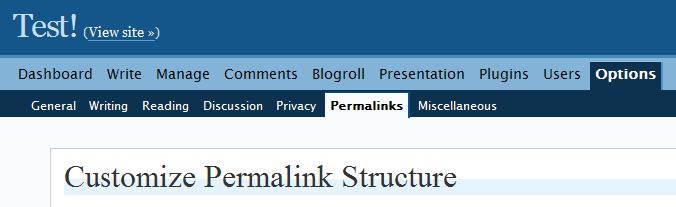
2) Login to your Wordpress Dashboard. Go to Options > Permalinks.
permalink-tutorial-1.JPG

(Click on the thumbnail to enlarge.)

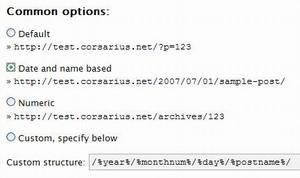
3) Under Common Options, you’ll see that “Default” (the first one) is currently selected. The second one reads, “Date and name based”. If you’re uncomfortable tweaking your Wordpress blog settings, select this second option. This will include your blog post’s title inside the URL, making it better in terms of the three items we listed above.
permalink-tutorial-2.JPG

The third option, “Numeric”, isn’t better than “Date and name based”, so don’t select that.

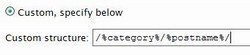
4) If you’re comfortable changing your blog’s settings, you can try the fourth option, “Custom”. Here’ you’ll have to enter the permalink structure you want, using the list of permalink tags. Custom structures allow you to create URLs that are shorter than “Date and name based”. One good example of a custom structure is /%category%/%postname%/.
permalink-tutorial-3.JPG

5) After choosing/creating a new permalink structure, don’t forget to press the “Update Permalink Structure” button.

permalink-tutorial-4.JPG

6) That’s it!

Related Articles

7 Responses

  1. Stephen Cronin

    09|Jul|2007

    I agree, changing your permalink structure should be one of the first things you do. However, the example you give above using /%category%/%postname%/ may cause problems for beginners as outlined here.

    Basically, using %category% is not sensible, unless you are very sure that your categories won’t change. I fell into this trap - as my blog matures, I need to tweak the categories, which would break my permalinks.

    Apart from that, great post!

  2. yuga

    10|Jul|2007

    You will also need to make your .htaccess file writable, otherwise the permalink structure will not take into effect. In that case, what WP does is give you a code you can insert into an the .htaccess file if you have one.

    You will also have to consult with your hosting provider if mod_rewrite is supported.

  3. Aaron B. Hockley

    10|Jul|2007

    Yes, changing permalinks is an important setup piece for any new WordPress blog. However, be sure to keep in mind that if you have an existing blog, which is being indexed by search engines and linked from other sites, that changing your permalinks will break those links. At that point it needs to be considered if the improved SEO of better permalinks is worth the damange of all of your incoming links being broken.

  4. Stephen Cronin

    10|Jul|2007

    Aaron, There are migration plugins, such as the Permalinks Mirgration Plugin which can address the problems of broken links.

    However, I’ve haven’t tried it - I’d rather not take the risk. Fortunately, I changed mine after only one post - so it didn’t matter that it was broken - no one read it!

  5.   Google OKs Underscores as Word Separators in URLs and More SEO Tips by Blog Tutorials

    24|Jul|2007

    [...] important thing to remember, though, is when you’ve come up with a formula for your blog’s permalinks, stick to it. Which means it’s best to change them early on, just after you’ve created [...]

  6. ken

    29|Sep|2007

    hi!
    is it permission of 644 better than 660?
    & how about if we don’t change it back from 666 to 644 or 660?
    TQ

  7. How to create a custom homepage in WordPress — kristarella.com

    07|May|2008

    [...] There’s a pretty good explanation for changing the permalink structure at Blog Tutorials. [...]


Leave a reply


Our Features
  • Design and Themes

    Is Your Blog W3C Compliant?

    Last night I checked my personal blog’s code hoping I can proudly display the W3C Validated Button. Since I use Blogger and do not really do anything to clean up the code (beyond adding Alt-tags to the images I embed) I wasn’t surprised at all to find that my blog contained lots of errors - [...]

    Read on
    More Design and Themes Features
  • Software and Widgets

    Wordpress Plug-ins

    If you blog using Wordpress and can’t do something that you want done like adding Sphere-related content at the end of your blog posts you might be surprised to find out that there are already plug-ins available that make it happen.
    To find good Wordpress plug-ins all you need to do is search for “wordpress [...]

    Read on
    More Software and Widgets Features
  • Reviews

    A Friend In Need

    I’m helping out my friends from the UA&P - IShareHappiness Blog Team.
    Whenever you feel pessimistic, angry, troubled, frustrated, and depressed – what have you – you need someone to talk to. Someone who could help you be more optimistic and help make you feel that there is hope. Sometimes it’s hard to talk to someone [...]

    Read on
    More Blog Reviews
  • Monetization

    Is Pay Per Post Worth It?

    I have written about pay per post in the past and I am not talking only about the platform going by that name – I am referring to the practice in general. My opinion has not really changed, I still think that it is alright to engage in pay per post practices as long [...]

    Read on
    More Monetization Features
  • Marketing and Search Optimization

    Building your blog brand step by step

    Building your blog’s brand does not need to be difficult. However, when it comes to branding you should always remember to exert effort to be consistent with the image you wish to portray or you’ll end up with confused, turned-off, and/or skeptical readers. Branding inconsistencies will make it obvious that the image you’re putting up [...]

    Read on
    More Marketing and SEO Features
  • Blog Resources

    Get Your Projects Done
    Advertise Here
    WordPress Themes
    Audival

SUBSCRIBE

CATEGORIES

Friends

CONTRIBUTORS

RESOURCES

BLOG METRICS